

How To
This section provides step-by-step instructions for creating and managing credentials in the Credentials module.
Refer to the following sections to know more:
Create a Personal Credential Create a Shared Credential Update or Delete a Credential Register and Manage an OAuth Service Managing Connectivity and Reauthentication
Create a Personal Credential
- Click Credentials in the left navigation panel. The Personal tab opens.
- Click + Account. The Select Service window opens.
- Choose the service (for example Amazon Web Service, Google, Microsoft or Custom key), then choose OAuth or Key based.
- For Key based: fill in Name, Description, the Authentication fields for the service and, optionally, Expires on. Click Submit.
- For OAuth: sign in to the provider and allow access. In Save credentials, choose Credential Type: Personal (Available across all your workspaces) and click Save.
Create a Shared Credential
You need the policy that allows managing Shared credentials.
- Go to Credentials → Shared and click + Account.
- Choose the service and OAuth or Key based.
- For Key based: fill in Name, Description, Select Workspace (one or more, required), the Authentication fields and, optionally, Expires on. Click Submit.
- For OAuth: after signing in, choose Credential Type: Shared (Available to selected workspaces), pick one or more workspaces in Select Workspace, and click Save.
GenAI Consumer users can create Personal credentials only. If you need a credential shared across a workspace, ask a user with a higher role to create it as a Shared credential.
Update or Delete a Credential
- In the Personal or Shared tab, click the Actions (three-dot) menu on the credential.
- Choose Edit to update it, or Delete to remove it, then confirm.
You can edit or delete:
- Your own Personal credentials (any policy)
- Shared credentials you own, or any Shared credential if you are an Admin
If Edit or Delete is not available on a Shared credential, contact its owner or your Admin.
A credential can't be deleted while an Agent, Workflow, EGPT or Knowledge Garden uses it. You'll see Deletion Failed with the steps to free it up: disconnect active integrations, cancel running or scheduled tasks, and remove it from third-party applications.
Removing a workspace from a Shared credential. If an asset in that workspace still uses the credential, the change is blocked with: This credential is currently used in Agents/Workflows under Workspace B. Please update or remove those mappings before proceeding.
Register and Manage an OAuth Service[NEW]
Register an OAuth 2.0 app once so everyone in your tenant can connect their own accounts through it.
Before you begin: Create an OAuth app in the external provider's developer console (for example GitHub, GitLab, Jira or Salesforce) and keep its Client ID and Client Secret ready. You also need its Authorization URL and Token URL if the provider requires them.
Step 1: Open Registered Services
- Go to Credentials.
- Switch to Registered Services.
- The list shows each service's Service Name, Description, Client ID (masked), Callback URL, Last Modified date and actions. If none are registered yet, you see: No OAuth Services configured. Register a new service to get started.
Step 2: Register a service
- Click + Register Service. The Configure New OAuth Service window opens.
- Fill in the fields:
- Click Save. The button stays disabled until all required fields are filled in and valid.
Step 3: Edit a service
- In the Registered Services list, click the Edit (pencil) icon on the service.
- The same window opens with the current values. The Client Secret shows as ********.
- To keep the existing secret, leave the field as it is.
- To replace it, type the new secret.
- If you change the Client ID or Client Secret, a warning appears: Changing credentials may break existing connections for users relying on this service.
- Click Save.
Step 4: Delete a service
- Click the Delete (trash) icon on the service.
- If an MCP tool uses the service, deletion is blocked with a message naming the tool, e.g. Cannot delete 'Corporate GitLab' because it is used by the 'GitLab Issue Tracker' tool. Please detach it first. Remove the service from that tool, then try again.
- If no tool uses it, confirm the message Are you sure? This will remove the configuration for all users.
Using a registered service in an MCP tool: When you add a Remote MCP server and choose the OAuth 2.0 (Custom App) authentication type, every registered service appears in the Select Service Provider dropdown.
Managing Connectivity and Reauthentication
Once a credential is linked to a tool or agent, the platform actively monitors its connection status across the agents, workflows and the modules. Use the following features to ensure your tasks remain uninterrupted.
1. Automatic Token Refresh (Self-Healing)
For services using OAuth (such as Google, Gmail, etc.), the system includes a self-healing mechanism. It will automatically attempt to refresh access tokens in the background before they expire. This ensures that your agents can continue accessing external tools without requiring you to manually log in repeatedly.
2. Monitoring Connection Status
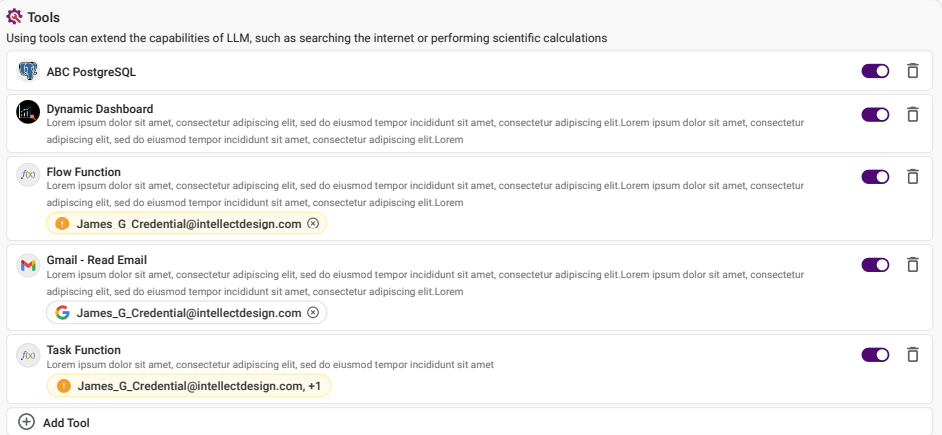
You can view the health of your tool connections directly within the Agent Configuration in Tools panel:
- Active (Toggle On): The credential is valid and the tool is ready for use
- Token Expired Alert: If a token cannot be refreshed automatically, an orange warning icon will appear next to the credential name
3. Reauthenticating Expired Credentials
If a connection is interrupted due to an expired or revoked token, you can restore it directly from the tools section:
-
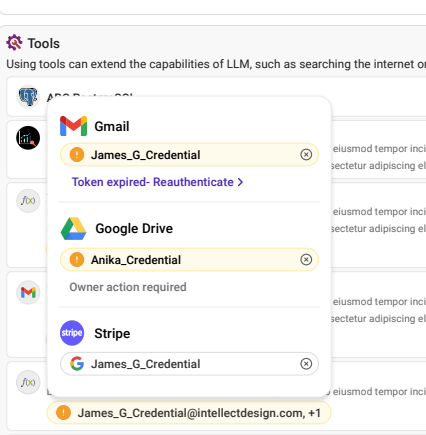
Manual Fix: Click Token expired - Reauthenticate > in the tool's credential settings. This will launch the external service's login screen to securely grant new permissions.
-
Unified Fix: If multiple tools use the same credential, reauthenticating once will automatically fix the connection for all associated tools across your workspace.
4. Handling Locked Credentials
To maintain security, reauthentication permissions are based on ownership:
- Owned Credentials: You can freely reauthenticate credentials you created.
- Locked Credentials: If a credential is marked Owner action required, it has been locked by the original creator or an admin. Only the owner or an Admin can edit, delete or reauthenticate it, so you must contact the owner to refresh the connection. See Lock Credential.
5. Error Feedback in Testing
When testing an agent in the Test and Debug panel, the system provides specific feedback if a tool fails due to authentication:
- Execution Interrupted: The agent will perform a "graceful halt" to prevent data errors.
- Detailed Trace: The debug sidebar will display a "Credentials Expired" card, identifying exactly which tool requires attention so you can resolve the issue without guessing which connection failed.