

Human-in-the-Loop (HITL) Node [NEW]
Overview
The Human-in-the-Loop (HITL) node in Purple Fabric serves as a critical governance layer within an automated workflow. While AI and programmatic logic handle the bulk of data processing, the HITL node creates a Pause & Review state.
- Primary Objective: To ensure 100% data accuracy by routing uncertain or high-value extractions to a human expert
- Key Value: It bridges the gap between raw machine output and verified business-ready data
- User Behaviour: User needs to build their own UI for using the HITL through webhook
Core Concepts
HITL Node
The HITL node acts as a circuit breaker in the workflow. When triggered, it halts the programmatic execution and moves the transaction into a "Pending" state. This state remains active until a human provides a response or a pre-defined timeout occurs.
Webhook Channel
Unlike other nodes that process data internally, the HITL node communicates via an Outbound Webhook. It pushes a structured data packet to an external URL (such as a custom review portal or a middleware like Make.com). This enables organizations to build their own UI for human reviewers while maintaining the workflow logic within Purple Fabric.
Request Body
This is the data payload sent to the reviewer. It uses Dynamic Mapping to bundle context from previous nodes, such as AI-extracted text, transaction IDs, or file metadata into a JSON object. This envelope provides the human expert with all the evidence needed to make an informed decision without searching external databases.
Callback Mechanism
The workflow resumes through a REST API Callback. Once the human completes their review in the external system, that system must POST a response back to the Purple Fabric callback_url. This response includes a unique callback_token to ensure the security and integrity of the intervention.
Decision Logic & Schemas
The HITL node is governed by a strict Output Schema. By default, it requires a decision field. However, it can be configured to accept custom fields, enabling humans to not just approve data, but to update it (e.g., corrected names or adjusted currency values) which then flows into the downstream nodes.
Timeout Governance
To prevent operational bottlenecks, every HITL node includes Time Management settings. If a human does not respond within a specified window, the system executes a Contingency Action, either Auto-Approve, Auto-Reject, or Fail Workflow ensuring the process eventually reaches a conclusion.
Task Immutability & Audit Trails
Within the Governance Module, every HITL intervention is recorded as an immutable task. This captures the Input Snapshot and the Output Snapshot, providing a transparent audit trail for compliance and quality assurance.
HITL Metrics
These KPIs measure the efficiency of your automation.
HITL Trigger Rate: The frequency at which workflows require human help.
HITL Intensity: The average number of human interventions per transaction.
High intensity often signals that the upstream AI models need further training or fine-tuning.
How To
This segment is designed to provide you guidance on how to configure HITL settings in the workflow effectively.
Perform the following steps in Workflow designer to create a new HITL node:
Configure HITL General Settings Create the Communication Setup Configure the Request Body Add Decision & Output Logic Configure the Timeout Settings Set up the Operational Workflow
Configure HITL General Settings (Section I)
- Node Name: In the selected HITL node, click the editable label and provide a unique name for the node(e.g., Verify_Data). This is used to identify the step on the canvas and within audit logs.
Create the Communication Setup (Section II)
The HITL node does not have its own built-in UI for reviewing; instead, it pushes data to an external interface via a Webhook.
A. Webhook Details
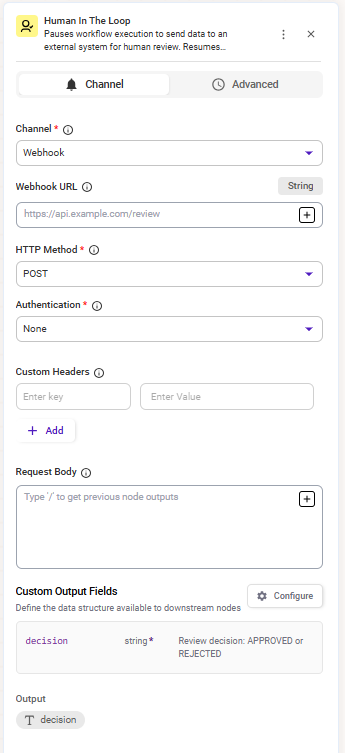
- Channel Selection: Choose the destination platform as Webhook
- Webhook URL: Provide the specific endpoint (API address) that accepts the data packet
This URL must be active and capable of receiving POST requests
- HTTP Method:
- Default: POST
- Authentication:
- Function: Ensures only our platform can send data to your webhook
- Options: Select from pre-saved API Keys, Basic Auth (Username/Password), or Bearer Tokens
B. Custom Headers
- Function: Provides metadata to the receiving server
- Common Use Case: Setting Content-Type: application/json or passing a Tenant-ID for multi-client environments
Configure the Request Body (Section III)
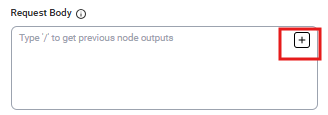
This is the Envelope that contains all the information for making decisions.
- Dynamic Mapping: Instead of hardcoding values, you can map data dynamically from previous nodes. Click ‘+’ button to select values from the dropdown menu and insert those into your configuration
- Structured JSON Content:
You can define a structured JSON object to map multiple data points simultaneously. This enables you to combine outputs from various nodes
Add Decision & Output Logic (Section IV)
Once the human clicks Submit in the external tool, the node receives an Answer back.
A. Custom Output Fields
This field is used so that the other upstream node can select the output field and make use of it. The first field here is the mandatory field i.e Decision and the rest can be configured by clicking on Configure and the user can select the field required.
These fields have to be used by the upstream nodes.
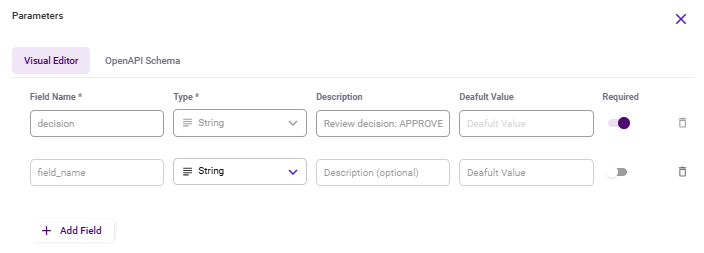
- Field Name: decision
The Name defined here must be the exact key that the external system sends in its payload to ensure the data is captured correctly.
- Data Type: String (Text)
- Valid Values: Only Approved and Rejected
- Function: This field stores the human's choice so that Route nodes later in the flow can decide where to send the data next
Configure the Timeout Settings (Section V)
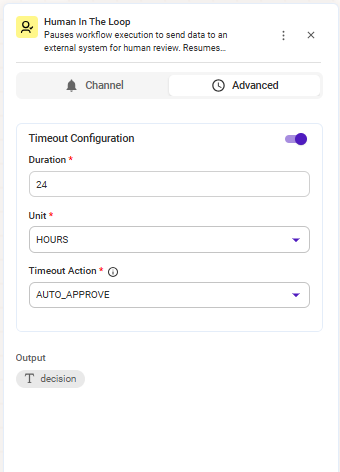
Workflows shouldn't hang forever. Timeouts define the automated backup plan if a human is unavailable.
- Timeout Duration (Numeric): The amount of time allowed for review (e.g., 48)
- Unit (Selection): Choose between Minutes, Hours, or Days
- Timeout Action (The Contingency):
- Auto-Reject: If no human responds in durations told, the request is failed (High Security)
- Auto-Approve: If no human responds, the system assumes the AI's guess was good enough (High Efficiency)
- Fail Workflow: We stop the workflow/transaction
Set up the Operational Workflow
- Triggering: The workflow reaches the HITL node because a rule was met or review was needed
- Dispatch: The system bundles the Request Body and sends it via the Webhook URL
- Human Interaction: The agent logs into the review portal, sees the extracted_name, and realizes it's misspelled. They fix it
- Callback: The review portal sends a response back to the HITL node with decision - Approved and the corrected name
- Resumption: The workflow continues to the next node with the corrected data
The workflow stops execution and creates HITL tasks immediately when HITL is triggered so that no downstream action occurs without human intervention and it can be tracked through the HITL task.
HITL Webhook Payload
When the HITL node is triggered in a workflow, it dispatches a POST request to the configured Webhook URL. This request contains a structured JSON payload, an envelope that carries all the context the external review system needs to present the task to a human reviewer and send back a decision.
Sample Payload
{
  "callback_token": "7e888f54-b376-4c88-a779-9626f1bf389b",
  "callback_url": "https://api.intellectqacloud.com/magicplatform/v1/invokeasset/hitl/resume/7e888f54-b376-4c88-a779-9626f1bf389b",
  "workflow_id": "fa3c9ae9-c2cb-45b8-8898-1d9cbc8e27f0",
  "trace_id": "f07d41da-f6bf-4534-a9a6-2afd39991322",
  "selected_context": {
    "file": {
      "file_name": "image (12).png",
      "file_id": "411301f4-a2c1-4444-adcb-40d21aee151a",
      "mime_type": "image/png",
      "total_pages": 1,
      "normalized_file_name": "image _12_.png",
      "file_size": 203306,
      "field_name": "file",
      "path": "/MagicPlatform/working-storage/idx/f07d41da-f6bf-4534-a9a6-2afd39991322/image (12).png",
      "file_ref_id": "dms-idx-47b66a5c-4582-438b-a51f-f7bc1791031a"
    }
  },
  "expected_output_schema": {
    "decision": {
      "displayname": "Decision",
      "datatype": "string",
      "is_array": false,
      "mandatory": true,
      "description": "Review decision: APPROVED or REJECTED",
      "default_value": null
    }
  },
  "final_context": {
    "decision": "PENDING",
    "file": { ... }
  }
}
Field-by-Field Explanation
1. Routing & Identity Fields
- Field - callback_token
- Purpose - A unique security token. Must be included when sending the decision back to the platform.
- Example -
7e888f54-... - Field - callback_url
- Purpose - The endpoint your external system must call (via POST) to resume the workflow.
- Example - https://api.intellectqacloud.com/.../resume/7e888f54-...
- Field - workflow_id
- Purpose - Identifies which workflow triggered this HITL review.
- Example -
fa3c9ae9-... - Field - trace_id
- Purpose - A unique identifier for this specific execution. Helps trace the exact transaction.
- Example -
f07d41da-...
2. Selected_context - The Review Content
This section contains the actual data/file that the human reviewer needs to review. It is mapped from the Request Body configured in the HITL node on the canvas.
Example
"selected_context": {
  "file": {
    "file_name": "image (12).png",
    "file_id": "411301f4-a2c1-4444-adcb-40d21aee151a",
    "mime_type": "image/png",
    "total_pages": 1,
    "normalized_file_name": "image _12_.png",
    "file_size": 203306,
    "field_name": "file",
    "path": "/MagicPlatform/working-storage/idx/...",
    "file_ref_id": "dms-idx-47b66a5c-4582-438b-a51f-f7bc1791031a"
  }
}The selected_context provides file metadata only. It does not include a direct download URL. To display the file to the reviewer in an external UI, a separate DMS API call using file_id or file_ref_id with appropriate authentication is required. This should be factored into the design of any external review portal.
3. expected_output_schema - What the Platform Expects Back
This section tells the external system exactly what fields and format it must return when submitting the human's decision.
Example
"expected_output_schema": {
  "decision": {
    "displayname": "Decision",
    "datatype": "string",
    "is_array": false,
    "mandatory": true,
    "description": "Review decision: APPROVED or REJECTED",
    "default_value": null
  }
}4. final_context - Current State of the Review
This reflects the live state of the HITL task at the time the payload was dispatched.
Example
"final_context": {
  "decision": "PENDING",
  "file": { ... }
}How the Callback Works
Once the human reviewer makes a decision in the external UI, the system must POST back to the callback_url with the callback_token and the decision:
Example
POST https://api.intellectqacloud.com/magicplatform/v1/invokeasset/hitl/resume/7e888f54-b376-4c88-a779-9626f1bf389b

{
  "callback_token": "7e888f54-b376-4c88-a779-9626f1bf389b",
  "decision": "APPROVED"
}
On receiving this, the Purple Fabric resumes the paused workflow and routes it based on the decision value.
Ensure external API credentials are added before configuring the node and make sure that you define the mandatory fields (e.g. decision) in the node UI to ensure your external system sends the correct data back.
HITL File Download API - Setup & Integration
When the Purple Fabric platform triggers a Human-in-the-Loop (HITL) node, it sends a webhook payload to an external system for human review. This payload contains file metadata that can be used to download and preview the associated files. This guide covers how to authenticate, construct the download URL, handle different payload structures, and build a working file proxy to bypass browser CORS restrictions.
1. Authentication
All API calls to the Purple Fabric platform require a Bearer token. The token is obtained via a dedicated authentication endpoint and must be included in every subsequent request.
Token Fetch Endpoint
GET https://<platform-base-url>/accesstoken/<realm>Required Headers
Sample Response
{
  "result": "RESULT_SUCCESS",
  "active": true,
  "access_token": "eyJhbGci..."
}
The token is returned under the access_token key. Extract it for subsequent requests.
2. HITL Webhook Payload Structure
When a HITL node is triggered, the platform POSTs a JSON payload to your configured webhook URL. The payload always contains the following top-level fields:
Sample Payload
{
  "callback_token": "xxxxxxxx-xxxx-xxxx-xxxx-xxxxxxxxxxxx",
  "callback_url": "https://<platform>/magicplatform/v1/invokeasset/hitl/resume/<token>",
  "workflow_id": "xxxxxxxx-xxxx-xxxx-xxxx-xxxxxxxxxxxx",
  "trace_id": "xxxxxxxx-xxxx-xxxx-xxxx-xxxxxxxxxxxx",
  "selected_context": {
    "file": {
      "file_name": "document.png",
      "file_id": "xxxxxxxx-xxxx-xxxx-xxxx-xxxxxxxxxxxx",
      "mime_type": "image/png",
      "file_size": 203306,
      "total_pages": 1
    }
  },
  "expected_output_schema": {
    "decision": {
      "displayname": "Decision",
      "datatype": "string",
      "mandatory": true,
      "description": "Review decision: APPROVED or REJECTED"
    }
  },
  "final_context": {
    "decision": "PENDING"
  }
}
3. File Metadata in the Payload
Files are found inside selected_context. The structure can vary across different workflow configurations:
Structure Variant 1 - Single File Object
"selected_context": {
  "file": {
    "file_name": "image.png",
    "file_id": "xxxxxxxx-xxxx-xxxx-xxxx-xxxxxxxxxxxx",
    "mime_type": "image/png",
    "file_size": 203306
  }
}
Structure Variant 2 - Array of File Objects
"selected_context": {
  "file": [
    {
      "file_name": "Aadhar Card.png",
      "file_id": "xxxxxxxx-xxxx-xxxx-xxxx-xxxxxxxxxxxx",
      "mime_type": "image/png",
      "file_size": 1781316
    },
    {
      "file_name": "Salary Slip.docx",
      "file_id": "yyyyyyyy-yyyy-yyyy-yyyy-yyyyyyyyyyyy",
      "mime_type": "application/vnd.openxmlformats-officedocument.wordprocessingml.document",
      "file_size": 7471
    }
  ]
}
Key File Fields
4. File Download URL
Once you have the file metadata, construct the download URL using three values from the payload:
GET https://<platform-base-url>/magicplatform/v1/invokeasset/{assetVersionId}/{traceId}/{fileId}/download-streamExample
{
  "workflow_id": "fa3c9ae9-xxxx-xxxx-xxxx-xxxxxxxxxxxx",
  "trace_id":    "f07d41da-xxxx-xxxx-xxxx-xxxxxxxxxxxx",
  "selected_context": {
    "file": {
      "file_id": "411301f4-xxxx-xxxx-xxxx-xxxxxxxxxxxx"
    }
  }
}
The download URL becomes:
GET https://<platform>/magicplatform/v1/invokeasset/fa3c9ae9-.../f07d41da-.../411301f4-.../download-streamRequired Headers for File Download
Note: Do not include Content-Type: application/json on file download requests as it can interfere with the binary stream response.
5. Sending the Decision Back
After review, POST the decision back to the callback_url from the payload:
POST <callback_url>Required Headers
Request Body
{
  "decision": "APPROVED"
}
Valid values for decision: APPROVED or REJECTED only.
Success Response
{ "status": "success" }Managing HITL Tasks in Governance
The Governance module provides a centralized view of all HITL tasks linked to specific transactions. Each task entry functions as an immutable system of record, capturing every detail of the human decision-point for compliance and tracking.
Inspecting HITL Tasks
Each task entry acts as a detailed "black box" recording of the human intervention point.
Key Data Points Available:
- Input Snapshot: A read-only view of the exact data payload passed from upstream nodes into the HITL node
- Output Snapshot: Once actioned, this displays the specific data (decisions, comments, metadata) sent back to the workflow engine
- Audit Metadata: Action Taken: The specific resolution chosen
- Reason: Any justification or comments provided by the reviewer
- Timestamp: Exact time of creation and completion
- Actioned By: The identity of the reviewer or system process that resolved the task
HITL Status
Every task must conclude with a specific resolution. This choice dictates the final status of the transaction and the direction of the workflow.
External API Support
Since Purple Fabric acts as the orchestration layer, external systems interact with these tasks via API.
- Restricted Editing: Only fields explicitly marked as "Editable" during the HITL node configuration can be updated via API.
- Schema Validation: Any inbound data is strictly validated against your pre-defined JSON schema. If the data doesn't match, the update is rejected.
- RBAC Enforcement: The API enforces Role-Based Access Control. Only users or systems with the correct permissions stored in the Secure Vault can submit a resolution.
- Immutability: Once a resolution is submitted (e.g., "Resume" or "Abort"), the task is locked. Resolutions are final and cannot be overwritten.
Governance Metrics & Data Exports
To help track the impact of human intervention on your automated flows, the Governance dashboard now includes real-time metrics and export capabilities.
Native HITL Metrics
The platform automatically computes two key KPIs for every workflow:
- HITL Trigger Rate: The percentage of completed or failed transactions that required at least one human intervention.
- HITL Intensity: The average number of HITL events per transaction. This highlights which workflows are most "human-heavy."
Analytics & Exporting
You can now move your governance data into external BI tools (like Tableau or PowerBI) for deeper analysis:
- Flexible Formats: Export transaction summaries and full execution traces as analytics-friendly CSV files.
- Contextual Filtering: The export automatically matches the date range and filters currently set on your transaction screen.
- Secure & Compliant: All exports strictly enforce RBAC (Role-Based Access Control), ensuring users only export data they are authorized to see.